Last Updated = Sunday, 20-Dec-2009 22:49:55 EST
The tablet has some terrific graphics options, but it means that we have to tweak the tablet depending on which way we want to display the graphics.
IMPORTANT POINT: If you are using the docking station, you need to connect the projector in the BACK of the docking station - if you are using the Tablet alone, then use the video connection on the left side of the keyboard. {Note: the video connection on the left side of the keyboard does NOT work if you are on the docking station!}
What about the Fn-F7 method?: I am no longer using the FN-F7 method, and if you want my opinion, I would not recommend using it ... I ran into so many problems with different screen resolutions (it would keep flickering mine back to a "low res" mode - and messed up all my icons).Now, if it works for you - fine - enjoy ... I hated the effects, so I stopped using it, and if you don't care either way, then I'm going to suggest "my" method listed here. When I follow the "Graphics Properties" method listed below - I can keep the screen resolution the same at all times (I'm using 1400x1050 - something I couldn't use with the Fn-F7 method). Yes, I have to do these steps each time - but to me, it is worth it - this has been flawless for me. That's my two cents. If you really want to use the Fn-F7 method here is the page for you. {All I can say is "good luck!"}
|
Try this first - it may save you several steps!
Very often, the tablet and projector will talk to each other and will automatically set up the "dual clone" method that is outlined below. There may be some tweaks necessary (like flipping the "monitor" back to "normal" instead of 180 degrees) - so you probably want to skim through the tips below. One last comment - I prefer to close the lid when I'm done with the presentation (done for the session, that is) - then I disconnect the projector cable and open the tablet .. I find that the tablet goes back to my "normal" screen resolution mode automatically. If that doesn't work (or only partially works) ... read on for the following steps ... |
Steps for how to configure the Tablet to give a "regular"
presentation to the overhead display (not Classroom Presenter):
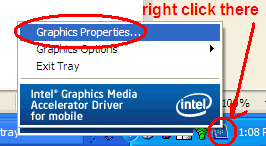
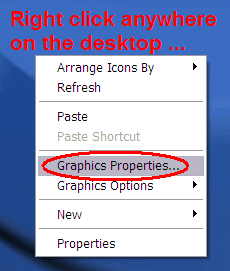
Step 1) The first step is to put the Tablet into DUAL DISPLAY CLONE mode. You can right click on the "blue screen" icon in the system tray (shown to the left below) - or right-click anywhere on the desktop - in both cases, choose GRAPHICS PROPERTIES.
If you do NOT see that "blue screen" icon, or when you right-click on the desktop you do NOT see the Graphics choices ... then skip down to the "Troubleshooting" section at the bottom of the page to fix that - and then come back!
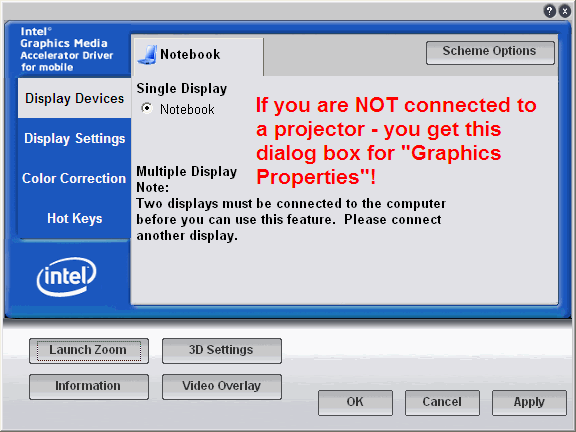
Step 2) Did you get this dialog box? This means you did NOT have the projector connected (or it was not turned on). The projector must be connected to the proper video port (if your tablet is not on the docking station, use the video port on the left side ... but if it IS on the docking station, you'll need to use the video port on the back of the docking station!).
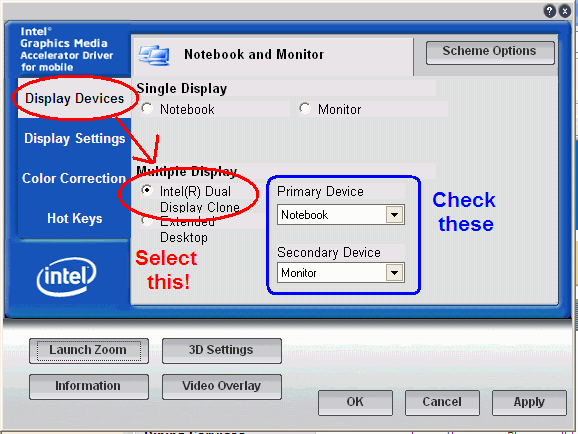
Step 3) Ok, if the projector is connected and the Tablet sees it - you should see this dialog when you make the Graphics Properties choice. Click on the Display Devices tab and set the Multiple Display to DUAL DISPLAY CLONE as shown. (Verify that the primary is the Notebook, and the Secondary is "Monitor".
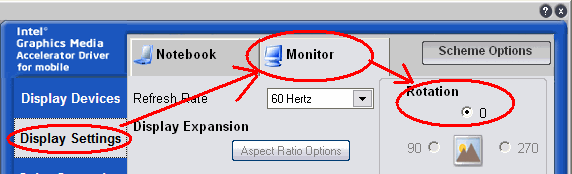
Step 4) Before we apply these settings, click on the DISPLAY SETTINGS tab, and then the MONITOR tab - and set the rotation to 0 degrees (otherwise your overhead display will be upside down!).
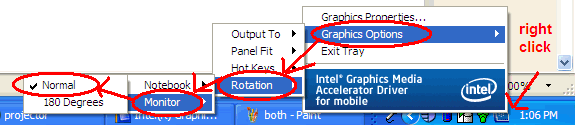
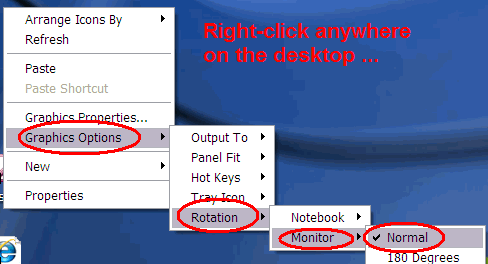
If you later find that the overhead display is upside down - you can change the settings by using the GRAPHICS OPTIONS choice in the popup dialogs (either right click on the system tray icon, or right click somewhere on the desktop):
Step 5) Do you find a "black border" around your presentation - and does where you pen is NOT match where the cursor on the screen is? It means your "aspect ratio" has been adjusted. Go back to the Display Settings box, and click the ASPECT RATIO OPTIONS button. Click the FULL SCREEN (NO BORDER) radio button and then click APPLY.
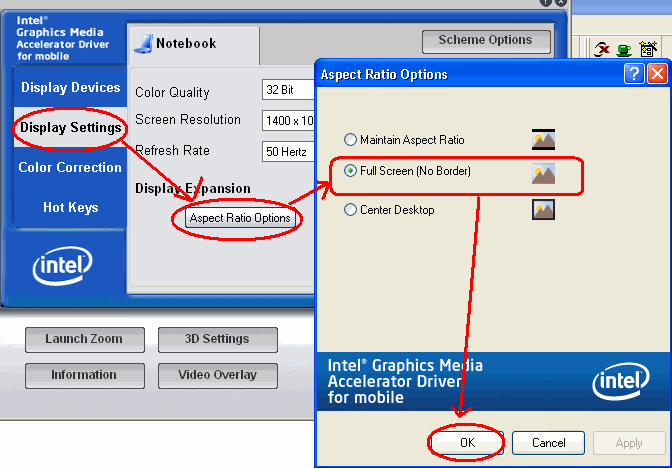
I *think* this is a setting that remains mostly "sticky" (you don't have to do it each time) - but if you jump between different projectors regularly, you might find you have to adjust it occasionally.
Final comments: Unfortunately, I can seem to get the "Dual Display Clone" to "stick" (we seem to have to go set it to that each time we change to a projector). If someone has another way to make that setting stick, please let me know!!
What is the other choice - the Extended Desktop choice? We WILL be using this when we want to use the Classroom Presenter program. This allows the notebook monitor to see the "instructor view", and if the application can make use of the extended desktop, then there will be a "presentation view" on the overhead display for the students (but they see the "output" from the application - not the instructor tools that you might see). There will eventually be another page that will talk about setting that mode for Classroom Presenter!
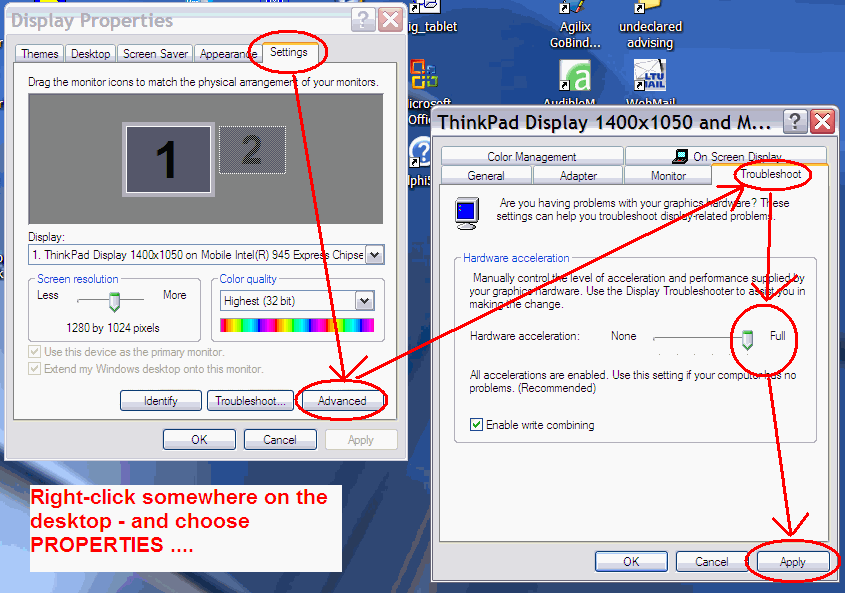
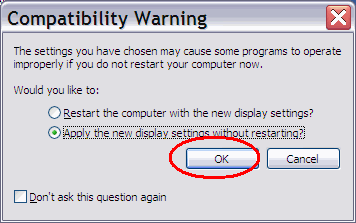
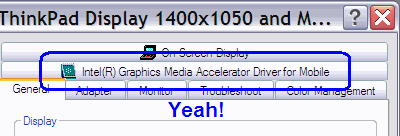
Troubleshooting - what if you can't see that Graphics Properties stuff?I ran into this recently, and I think it was after I installed something ... it wasn't anything I did ... all of a sudden I didn't have the Graphics Accelerator driver working (that gives all these fancy choices). It turns out the "hardware acceleration" had been turned off. Here is how to get it back again: right click somewhere on the desktop and choose PROPERTIES - then the SETTINGS tab - then the TROUBLESHOOT tab - make sure the Hardware Accleration is set to FULL. Then click APPLY. You'll probably get a "Compatibility" warning - you could apply without restarting - and then click ok to accept the changes (the screen will probably flicker, and your screen resolution might change - if that happens, you can always go back to your desired resolution by getting back to the Properties-Settings dialog box, and changing the screen resolution slider. [If you then returned to that Advanced choice as shown - you should now see an "Intel Graphics Media Accelerator Driver for Mobile" tab - Yeah, we are back in business - now you can return to the top to see how to change the Tablet to give presentations!
Return to the Laptop help page
Last Updated = Sunday, 20-Dec-2009 22:49:55 EST Of the 14 people that have visited this site, you are the most recent.