You should make sure you have the tablet set up in the correct graphics mode first - here is a page that will show you that.
Just to be clear - I (Scott Schneider) personally am no longer using the Fn-F7 method - to me it is FAR more useful to use the "graphics properties" method (as you'll see explained on the above page) - even though I have to do it each time.
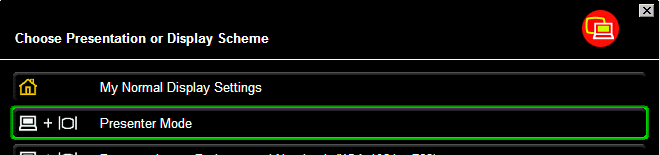
Step 1) Now, you can use the FN - F7 key combination (hold down the blue FN button in lower left of keyboard, press the F7 button and release both) - this should bring up the Presentation Director - you would then choose PRESENTER MODE as shown:
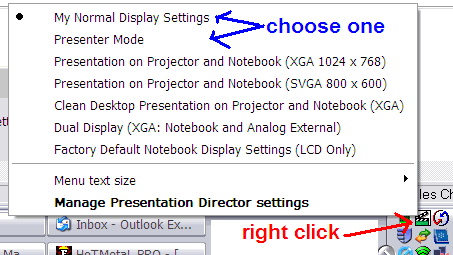
Suppose you are in tablet mode, and don't have access to the keyboard - can you still switch modes? Sure - go to the "Presentation Director" in the system tray (looks like a movie set "clapper") - click once on it - you'll see the same choices as above - you don't need to use the keyboard if you don't want!
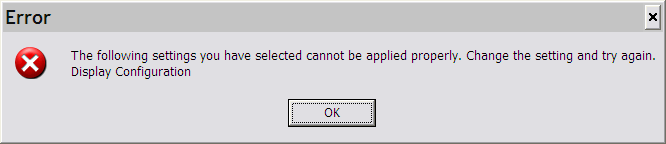
Step 2) You might see an error message like this - if so, just click OK - it usually still projects both (after flickering the screen several times) and then it doesn't normally show up again (the error message that is ..).
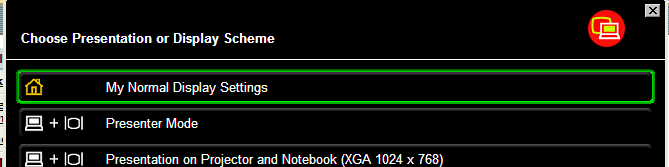
Step 3) BEFORE YOU DISCONNECT FROM THE PROJECTOR - when you are done with your presentation - go back to the Presentation Director (either FN-F7 or use the system tray icon (from Step 5) and select MY NORMAL DISPLAY SETTINGS. This will avoid hassles of having a blank screen when you leave the room (since the tablet is confused that it can't find the projector). [Caution - this has caused problems for some people - to play it safe, you might want to just disconnect the projector and NOT go back to "normal settings".]
Return to the Laptop help page
Last Updated = Sunday, 20-Dec-2009 22:50:53 EST Of the 6 people that have visited this site, you are the most recent.